
Voyager Split Keyboard Thoughts After a Year of Use
I would like give you an overview and what the benefits and hurdles that are part of using this particular split keyboard after a year of working with it. I see so many different reviews and comments on these and I think I have some thoughts on why they might be so varying in their appreciation of what they can do and cannot do for you.
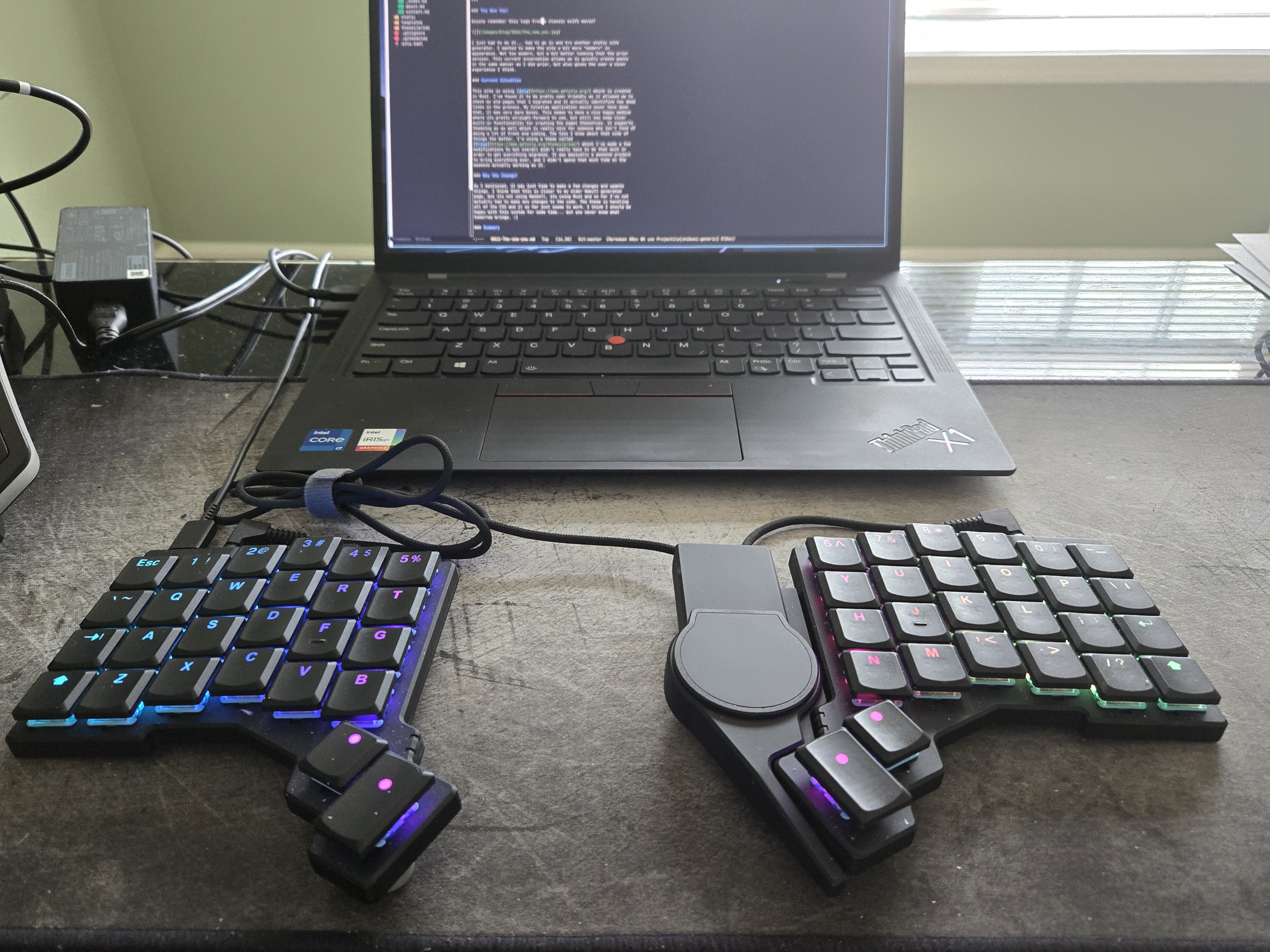
For anyone who is not familiar with the Voyager keyboard, here is what it looks like. I also have added their Navigator touch pad to this keyboard as well as I was tired of reaching for an external mouse or worse yet touch pad just for a few operations.
Split Keyboard Benefits
Here are a few of the things that I’ve found are really nice about split keyboards, with a focus on my Voyager in particular.
Less Finger Gymnastics
If you are programmer, you’ll find yourself constantly performing one type of gymnastic or another reaching for keys that a lot of keyboard users rarely or never reach for. These keys seem like they were placed as an afterthought on most keyboards, and I tend to think that is the case. Think of the location of keys like CTRL, META, ALT, F1-F12, PG UP, PG DOWN. That’s an example list of the ones that we tend to use. Which ones are more popular depend on the developer and also their editor/IDE. I use Emacs for almost all of my development work, so hitting CTRL, META, and ALT are like hitting “R” to me. Its constant. With their placement on a standard keyboard your hands become really tired ultimately.
Ergonomics for the Wrist
Take a minute to look at your wrist placement on a standard keyboard. Your wrists will almost invariably be hinged out to some degree as opposed to inline with the keyboard. This is something that you generally won’t notice has an impact unless you type for long periods of the day, possibly over years. There is a fatigue that starts to set in with this. Some people even mention numbness in their hands. With a split keyboard you control that angle simply by adjusting each half of the keyboard. You can set it to something that is comfortable for you and not have to conform to the keyboard. Also, in the case of my Voyager, you can see that the keys are laid out in a columnar fashion. This allows for less reach when going towards keys in the outer parts of the keyboard, which also reduces fatigue.
Compact Size / Portability
Ever try to carry a full size keyboard with you when traveling? Even an 80% one is really too large to be portable. With this I can put my keyboard in a soft case about the size of DVD holder albeit a bit thicker and its ready to go on the road. I even have a touch pad now. I could obviously use my laptop keyboard, but then I lose the ergonomics of the Voyager, and I don’t have a mechanical keyboard to use either.
Replaceable Key Switches
The keyboard that I have allows you to switch out the switches as you wish which is a really great benefit that honestly I didn’t think I would use when I bought the keyboard. I use MX browns in my mechanical keyboard so I went with the browns also on this keyboard. However these are Kailh Choc switches not MX ones and I learned they have a completely different feel. I changed the switches to Ambient Twilight switches. These are linear vs tactile for the browns and a super quiet. Honestly if you want quiet they are the way to go. The issue with them for me was I had too many false triggers, especially with my home row mods I had (more later on this). They were just too sensitive for me. I then tried Kailh Choc Whites which are actually “clicky” switches. I didn’t think I would like them but they just fit almost immediately. They do have a click to them which is pretty distinct but they number of false hits decreased by over 90% almost immediately. I tend to hit the keys pretty hard when typing and rest my hands on home row rather than hovering, so they were a pretty logical choice actually.
Programmable Keys
If you aren’t familiar with split keyboards, the majority of them will allow you to program the keys via some type of software. Some of these require you to use an editor to create a file which you then use to “Flash” the keyboard in some manner. With Voyager, there is a web site that you can go to to visually assign the keys and layers (more on layers later) that will be used. You then switch on an update switch on the keyboard and it gets flashed via the web page if you have a Chrome browser. Its also allows you to save versions on the page as well which can come in really handy as you will likely be making a lot of changes initially getting comfortable with your layout.
Flexibility
One thing that always drove me nuts when switching from PC to Mac was the keyboard layout. The META key moves on a Mac and its really annoying in Emacs. With this keyboard, the mapping does not change! I don’t know the whys around this and honestly I don’t care that much, because it just works exactly the same way on both. In my case I chose the PC layout in my keyboard program as I spent most times in FreeBSD or Linux so it made the most sense. A huge win!
The Navigator
As mentioned, I also recently added the Navigator to my keyboard. Its very well designed and connects via a magnet to the bottom of the Voyager. If you are using MacOS you need to install some software that is in the Oryx page in order to have it function, but for BSD and Linux there is no need to install anything. Its just a configuration in your window manager to get working. I’ve found I can do click/two finger scrolling and highlighting with it, although the highlighting is a little dodgy at times. Overall though I like it and really don’t need to carry a mouse with me any longer, which was the goal.
Split Keyboard Challenges
As with all things, there are invariably going to be some adjustments with getting used to a new keyboard, especially one that makes more drastic changes that can be available in one of these programmable ones. Here are some of the things I ran into personally.
Columnar Design
It you notice the keyboard is not staggered, its columnar. This meant I had a lot of mishits initially, especially as I would reach further towards the edges of the keyboard, where they had the greatest impact.
Less Keys Means Layers
Given there is literally half the keys present when compared to my prior mechanical keyboard, there are obviously things missing from the normal layout. This means you need to use layers in order to accommodate those keys. Layers work just like the SHIFT key on a standard keyboard. You press a key to activate the layer and it changes all the keys on the keyboard potentially to become other keys. What keys is determined by how you have programmed the keyboard, which becomes a bit of trial and error. Everyone has different preferences when it comes to this. I personally tried to keep as many of the keys the same as they were before and changed as few as possible and that seemed like a good approach for me. This allows me to switch back and forth to a standard layout without a huge amount of pain.
Learning Curve
As you can imagine this means there is a learning curve. I found that the first two weeks were really painful, almost to the point of thinking that I wouldn’t be able to use the keyboard. I even put it away for a bit in frustration. Luckily for me something told me to not give up and I pulled it again and found something called home row mods which changed everything for me. Without going into too much detail, these allow you to do a “hold” on a key and it activates a different key, rather needing to switch to a different layer with another key. For me I mapped the CTRL, META, ALT keys to s, d, f, l, k and j respectively so I could do it with either hand and it opened up the world of Emacs like never before. As soon as I adjusted to these everything made sense to me and I could hit all of the finger gymnastics keys without any issue. A true game changer. That is what opened my eyes to the possibilities of these keyboards and why I’m writing this today.
Switching Back to Conventional Keyboards
I alluded to this earlier. I really can jump back an forth without too much aggravation at this point. This means if I’m stuck and need to use my laptop keyboard its not really a problem. Also when I started to learn the Voyager I didn’t switch to it cold turkey as I realized it would be really bad to try and do that. I think that also helped a lot with not making my entire life a giant torture session trying to adjust to the keyboard.
Cost
Unfortunately these keyboards are not inexpensive and I could see that being a barrier to folks for sure. This particular keyboard is now at $365 including shipping. If you are reading this from the US there will also likely be the moron tariff added which is a little surprise gift that UPS will send you afterwards that also includes an additional surcharge the “because we can” fee that UPS added that has made me now vow to never send anything via UPS again. That’s all because we all live in stupid times governed by muppets, but I digress.
Summary
At this point, I would not want to go back to using a standard keyboard for most of my activities, including programming in Emacs as that is where I see the biggest win and increase in speed/productivity. Is it for everyone? I’m not sure. The learning curve is pretty steep. I think someone who is a casual user than can already type pretty well may not really get a benefit honestly. If you are instead someone who programs a lot and uses a keyboard for the majority of the day, this could really be a win. I personally do not plan on going back, in fact I’m wanting to invest in a second one as so as the moron tariffs end, but YMMV.
Until the next blog, don’t talk about it…